Loading Your Vault
Go to Add Content and upload a Completed Questionnaire — Orrigo classifies it automatically once it finishes analyzing.
 12345678
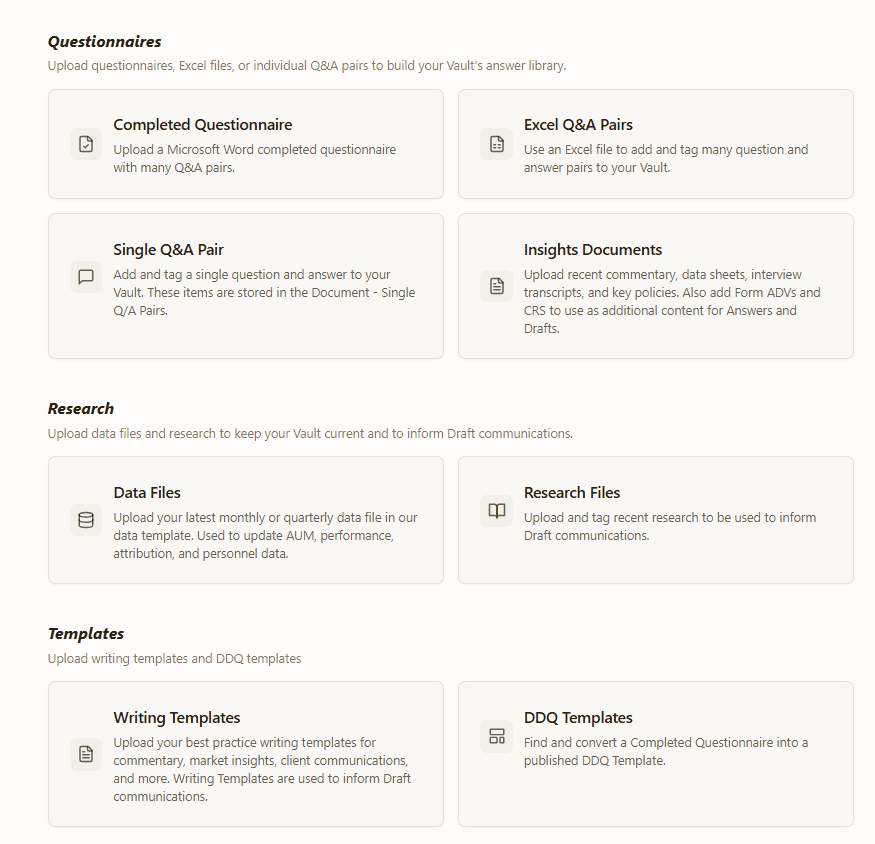
Click any numbered pin on the screenshot — or any card below — to see what each upload type is for
Completed Questionnaire
Upload a Microsoft Word (.docx) file here to kick off auto-classification — Orrigo classifies every Section, Question, and Answer automatically.
Excel Q&A Pairs
Use an Excel file to add and tag many question and answer pairs to your Vault at once — handled in a different area from auto-classification.
Single Q&A Pair
Add and tag a single question and answer to your Vault. These items are stored in the Document - Single Q/A Pairs.
Insights Documents
Upload recent commentary, data sheets, interview transcripts, and key policies. Also add Form ADVs and CRS to use as additional content for Answers and Drafts.
Data Files
Upload your latest quarterly data file in Orrigo’s data template — used to update AUM, performance, attribution, and personnel data.
Research Files
Upload and tag recent research to be used to inform Draft communications.
Writing Templates
Upload your best practice writing templates for commentary, market insights, client communications, and more — used to inform Draft communications.
DDQ Templates
Find and convert a Saved Questionnaire into a published DDQ Template.
Orrigo accepts Microsoft Word (.docx) files and we also onboard Insight PDFs and Excel files.
Once a document finishes analyzing, Orrigo shows two panels at once: the classified document with it's classifications on the left, and the review panel where you tag and save Q&A pairs on the right.
 123
123Click any numbered pin on the screenshot — or any card below — to explore that feature
Section (green)
Structural elements like the document title and section headers. Orrigo recognizes these as sections for tagging.
Question (amber)
Every question Orrigo detects. These highlights enable Orrigo to pair each question with its corresponding answer.
Answer (blue)
The actual answer — this is the content that gets extracted into Q&A pairs and saved to your Vault.
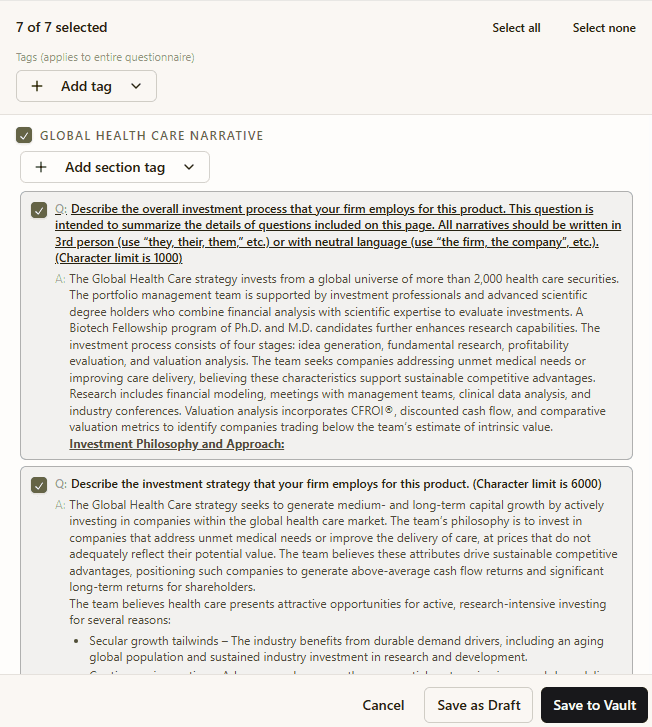
On the right, review every Q&A pair found, manually fix the classification as needed, add tags by section and choose what to save before saving to your Vault.
 123
123Click any numbered pin on the screenshot — or any card below — to explore that feature
+ Add Tag
Apply a tag to the entire questionnaire at once or tag each section separately — useful for questionnaires that cover multiple strategies, clients, or products.
Section Checkbox
Uncheck a section or an individual Q&A pair below it if you don’t want to save it to your Vault, or click on the underlined question to preview it in your document format.
Save as Draft or Save to Vault
Save as Draft to review later, or Save to Vault to publish the selected pairs immediately. Go to your Vault to view the Q&A pairs.
Once a document shows an Analyzed status, click its ⋯ menu for a few more options.
 1234
1234Click any numbered pin on the screenshot — or any card below — to explore that feature
Download Original
Download the original file exactly as it was uploaded, before classification.
Fix Manually
ImportantManually correct a Section, Question, or Answer that Orrigo auto-classified incorrectly. Select the text to change the classification, or highlight multiple paragraphs to change.
Re-run Analysis
Reclassify the document to start over.
Delete Permanently
Removes the document and its classification entirely. This can’t be undone.