Create a Recurring DDQ Template
Turn a completed DDQ into a reusable template so recurring, data-heavy questions stay current every reporting period — without retyping a single table.
✓ Jump from a saved Vault document straight to DDQ Templates
✓ See how Orrigo flags recurring data tables as Data Questions
✓ Set the reporting period and product, then Reanalyze or Preview
Heads up — Make sure to update your firm's Quarterly Data File before running the data agent in the Microsoft Word Add-in.
Go to DDQ Templates
Click Go to DDQ Templates directly from the confirmation screen after onboarding a completed DDQ to your Vault.
Find it in your Vault
Go to Vault - Documents, filter by Templates, and select your DDQ.
 12
12Click any numbered pin on the screenshot — or any card below — to explore that feature
Go to Vault
Returns you to the Vault to browse the Q&A pairs you just saved alongside the rest of your library. You can also access your DDQ template in the Documents tab.
Go to DDQ Templates
Skips straight to building a reusable template from this document instead of returning to the Vault.
Orrigo reads through the source document on the left and carries every question over into the template on the right — tagging the ones with numeric, table-based answers as Data Questions along the way.
 123
123Click any numbered pin on the screenshot — or any card below — to explore that feature
Section (green)
Structural headers, like "Strategy Overview," carry over as the section grouping in your template.
Questions (amber)
Every question Orrigo detects so it can carry over both narrative and data questions alongside the answers.
Answers (blue)
Narrative responses or data tables that Orrigo will automatically update with the Data Agent in Microsoft Word.
Heads up — Unpublish the DDQ template to make any edits. After unpublishing, revisit the ⋯ in the top right corner of the web app, where you will see the Fix Manually option. After editing, click Publish to publish your document to Word.
 1234
1234Click any numbered pin on the screenshot — or any card below — to explore that feature
Reporting Quarter & Product
ImportantSelect the correct product to map to the DDQ Template. The list of products comes from your Quarterly Data File.
Data Questions Toggle
Filter your document to just the data questions or untoggle to also include narrative questions.
Question Label & Show Analysis
Each question is labeled as a data or narrative response; click the chevron to change the question type. The show analysis button displays the prompt that generates the data mapping to the Quarterly Data File, and the related answer.
Reanalyze & Preview
Reanalyze a single data question to re-map it to your latest data file, or click preview to run the query in advance of publishing. Once the answer is generated, the Previewed status appears below the response.
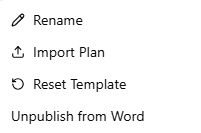
Click the ⋯ menu next to a published template for a few more options.
Rename
Give the template a new name at any time.
Import
Import an existing, standard DDQ Template to facilitate mapping a new, similar DDQ.
Reset Template
Revert the template to its original state, undoing manual edits.
Unpublish from Word
Removes the template so it's no longer available to the Data Agent. In order to edit your DDQ template you must first unpublish from Word, then select the Fix Manually button.
Once your DDQ template is published to Microsoft Word, open the Data Agent to run the Data Agent in the Microsoft Word Add-in. Select the published DDQ Template and click Run to update every mapped data question and table in the recurring DDQ.

Open the Data Agent
Open the Orrigo Add-in for Microsoft Word and select the Data tab.
Select your template
Select your published DDQ template. Preview the data questions that will be updated in your DDQ.
Run the Data Agent
Click Run to update each mapped data question or table.