Free Trial Setup
Free Trial Setup
Setting up a Trial of AdviserGPT is easy – whether for your Firm or as an Individual. Follow these simple steps and you can be up and running in minutes.
1. Reset your password
Once we provision your secure tenant and email you your log-in, sign-in and create a new password.
Then, log-in with your user name/password or via Microsoft or Google SSO (Single Sign On).
2. Onboard your recent, gold-standard 'prior art'
Save a small number of completed RFPs or DDQs to your AdviserGPT Vault.
Start with a few simple formatted questionnaires. We can add more later.
These files can include completed RFPs, recent interview transcripts, anything formatted with Questions then Answers.
If a completed RFP or DDQ includes many tables with embedded questions and answers, it may require help from us to onboard for you.
3. For Microsoft Word 'prior art' documents
Go to the AdviserGPT Web App - File Upload screen, and upload your file. We will onboard it for you in 1-2 days.
Or, DIY by opening the completed questionnaire in Microsoft Word.
On the ribbon bar at the top of Microsoft Word, look for Add-ins, search for the AdviserGPT Add-in, and install it in your MS Word version.
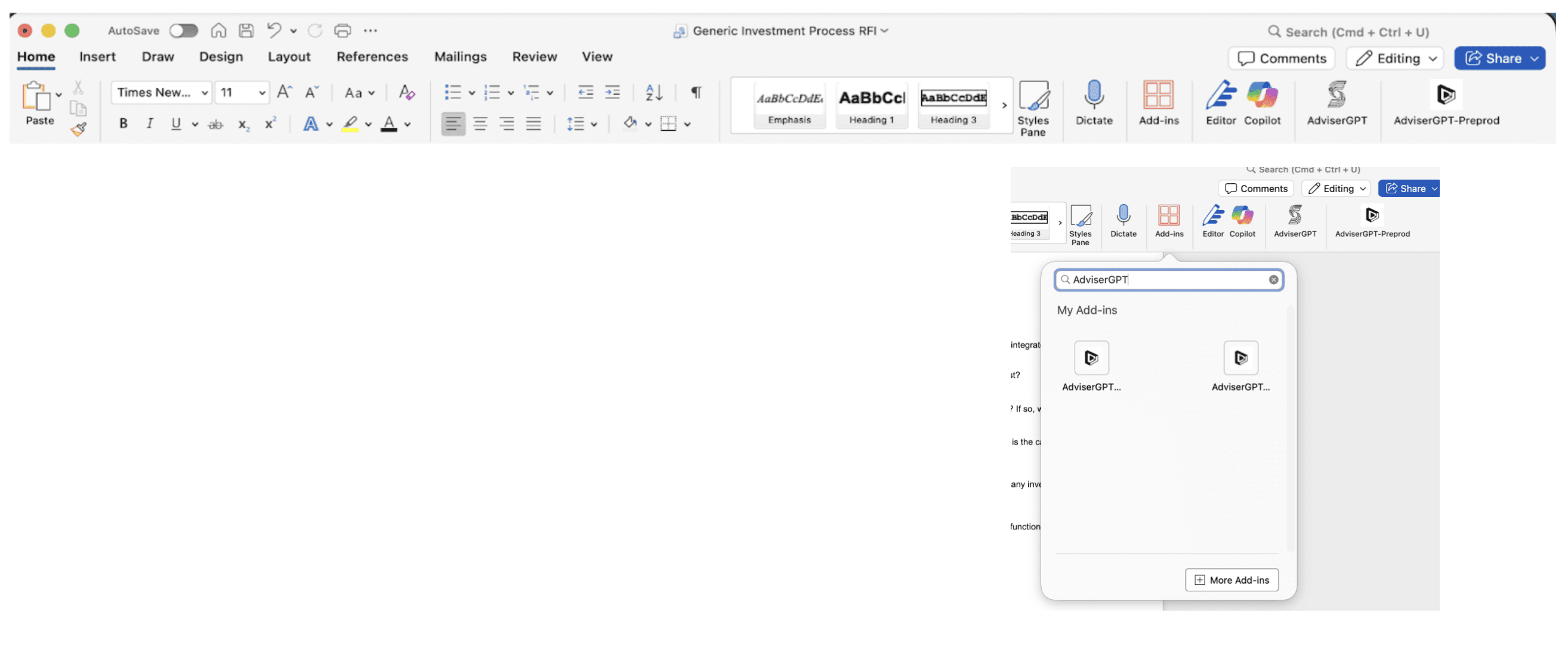
Once installed, pin the AdviserGPT Add-in to your MS Word ribbon, and log-in to the AdviserGPT Add-In.
Go to the Save tab in the MS Word Add-in and select Classify Document.
This function will automatically color-code your completed questionnaire so that the question/answer pairs can be properly saved to your Vault.
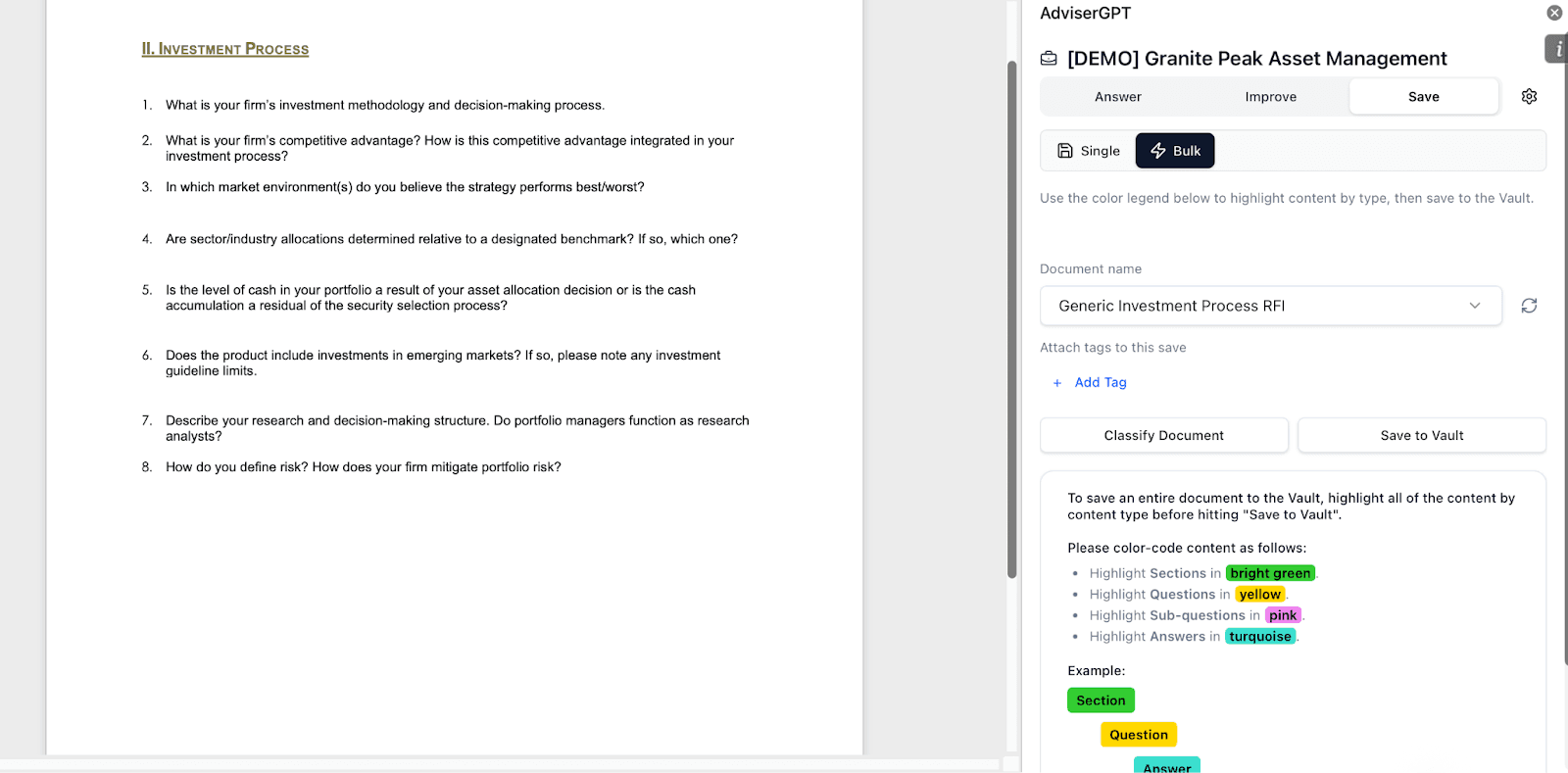
Select Save to Vault and review the question/answer pairs in the Preview Mode in the Add-in to ensure the questions/answers are correctly highlighted.
When everything looks good, select Save Document.
Go to your Vault in the AdviserGPT Web App to see the saved content.
To add saved images, search for the question/answer pair in your Vault and go to Edit mode + Image to add to an answer.
4. For Microsoft Excel 'prior art' files
Go to the AdviserGPT Web App - Vault screen.
Select + Add Content at the top of the screen.

Select Excel Q&A Pair to upload a completed Microsoft Excel file of question/answer pairs.
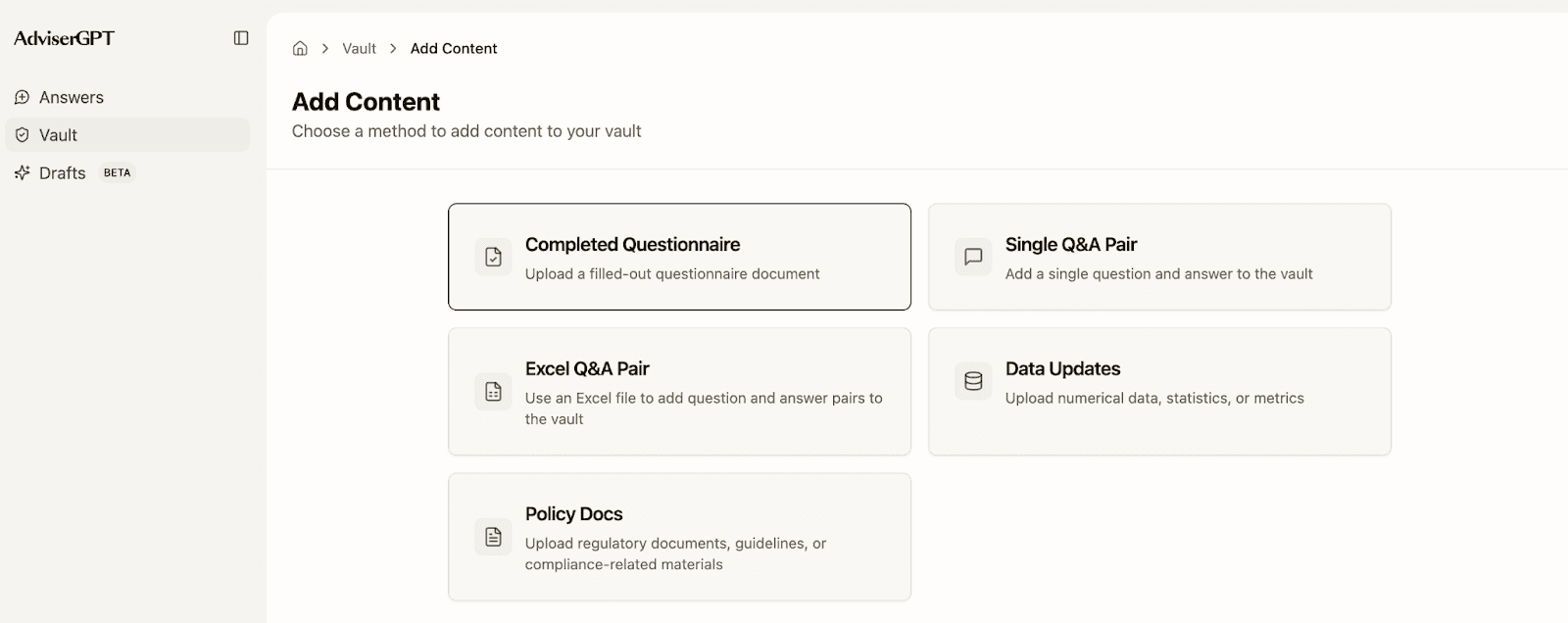
Follow the instructions on the screen to map the columns before saving/uploading to your Vault.
5. Policy, Commentary and Data File documents
Follow the upload instructions in the Vault + Add Content.
These non question/answer file types are less helpful for the RFP Answer workflow, but can be helpful for the Draft Insights and DDQ Updates workflows.
6. Trial and test away
Use our Web App homepage (www.advisergpt.ai/login) to test the RFP Answer workflow with the sample prompts; or write custom prompts of your own.
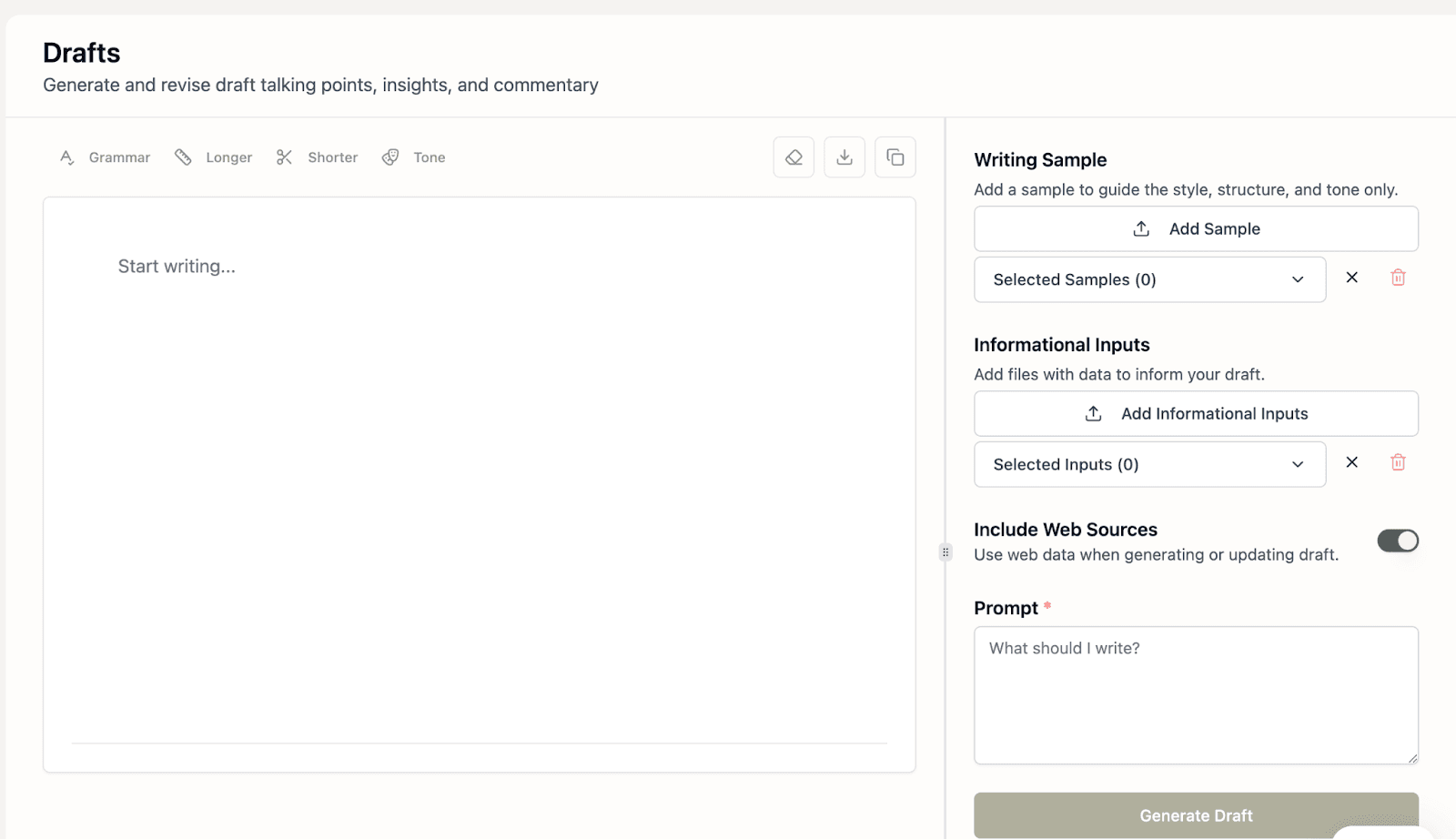
Go to Drafts in the left nav to write sample Market Recaps, Commentary Summaries, and Client Talking Points.
Follow the sequential items in the right sidebar to add a formatted Writing Template, any helpful informational inputs, turn on/off Web Sources, and write your prompt.
Go to the Vault in the left nav to find specific question/answer pairs or policies that you onboarded; update, email, tag as needed.