Installing Plug-ins

Installing Plug-ins
We offer three plug-ins: Microsoft Word, Google Chrome, and Microsoft Edge. Soon, we will release a Microsoft Excel plug-in.
We encourage all users to install plug-ins.
Adding the Microsoft Word Add-in
Open a new or existing document in Microsoft Word.
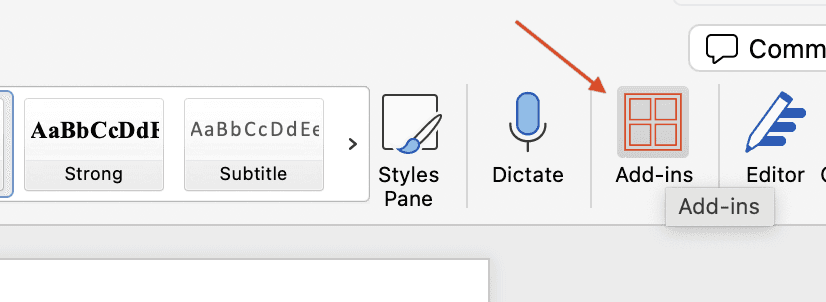
In your Home ribbon at the top of the screen, select 'Add-ins' (or 'Store' in some versions of Word) as pictured below.
Search for 'AdviserGPT'.
Select 'Add' or 'Install' to add it to your Word application.
If you cannot find the AdviserGPT Add-in for Word in your MS Word Add-in pane, then go to this link to install it: click here
Once installed, go to the Home ribbon in Word and locate the AdviserGPT button in the upper right. Click to open.
If you receive an error message when trying to install the add-in, you may need to ask your IT Department to authorize the download of the AdviserGPT Add-in.
Adding the Google Chrome Extension
You can find the extension here: click here
Click 'Add to Chrome'.
Alternatively, you can navigate to the Chrome Store as follows,
In Google Chrome, select the three hamburger dots in the upper right.
Select 'Extensions' and then 'Visit Chrome Store'.
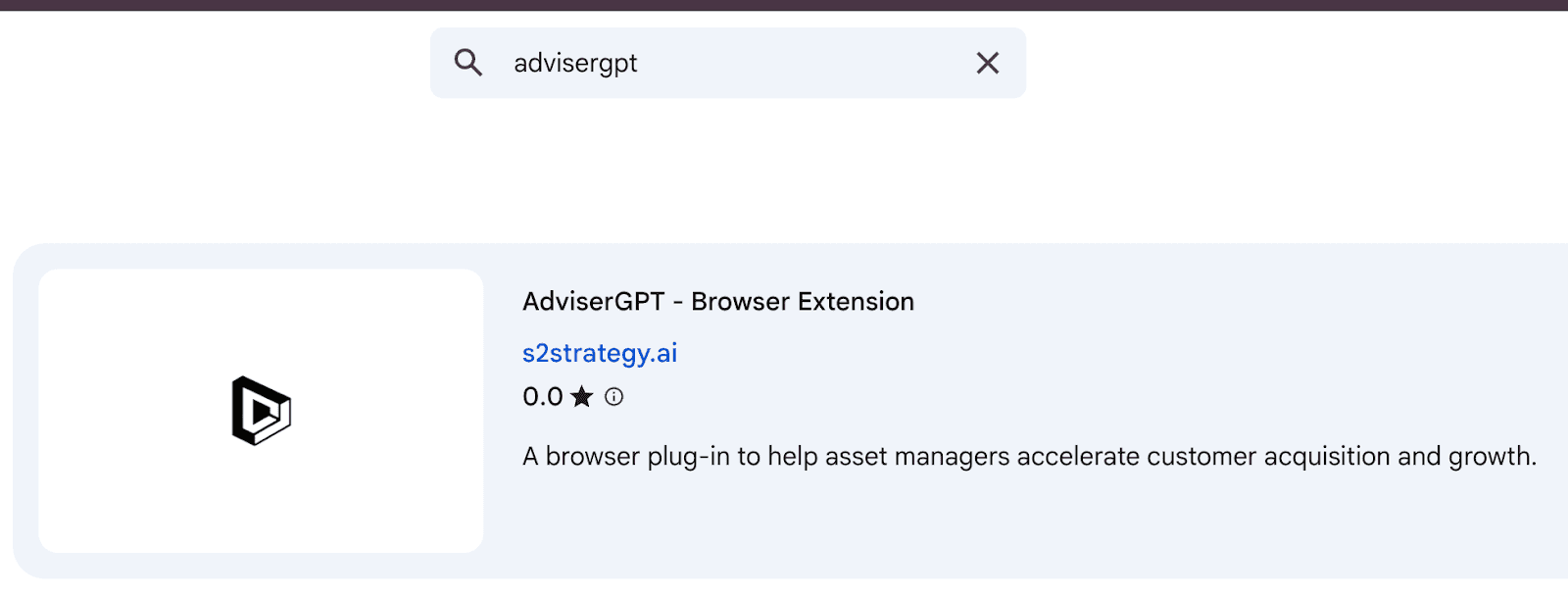
Search for 'AdviserGPT' as shown below.
Adding the Microsoft Edge Extension
You can find the extension here: click here
Click 'Get'.
Select 'Add Extension'.

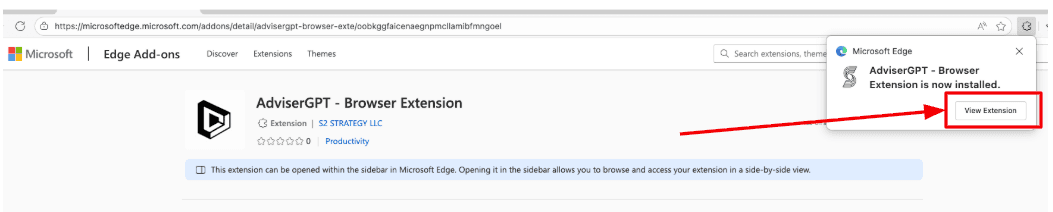
Select 'View Extension'.
Alternatively, you can navigate to Microsoft Edge Add-ons as follows,
In Microsoft Edge, select the three horizontal hamburger dots in the upper right.
Select 'Extensions' and then 'Get Extensions for Microsoft Edge'.
Search for 'AdviserGPT' as shown below.