Setting up AdviserGPT
Reset your Password & Sign in
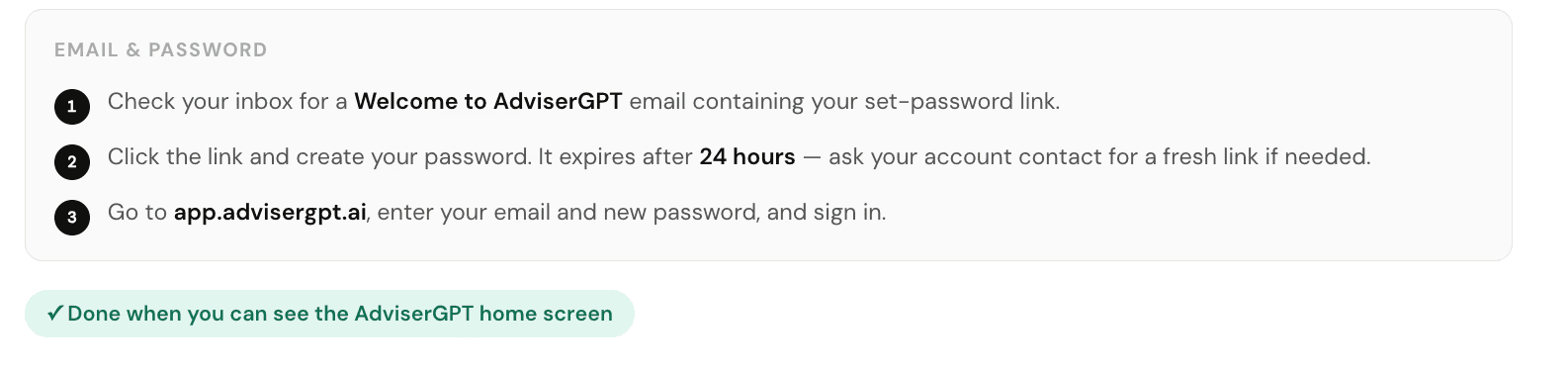
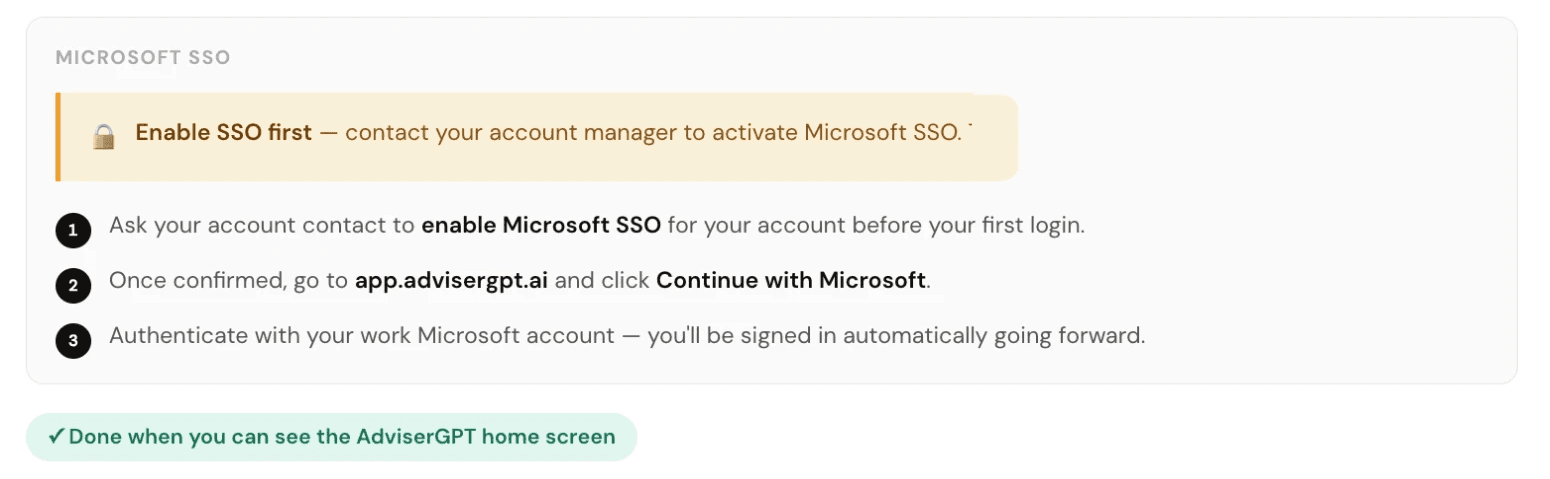
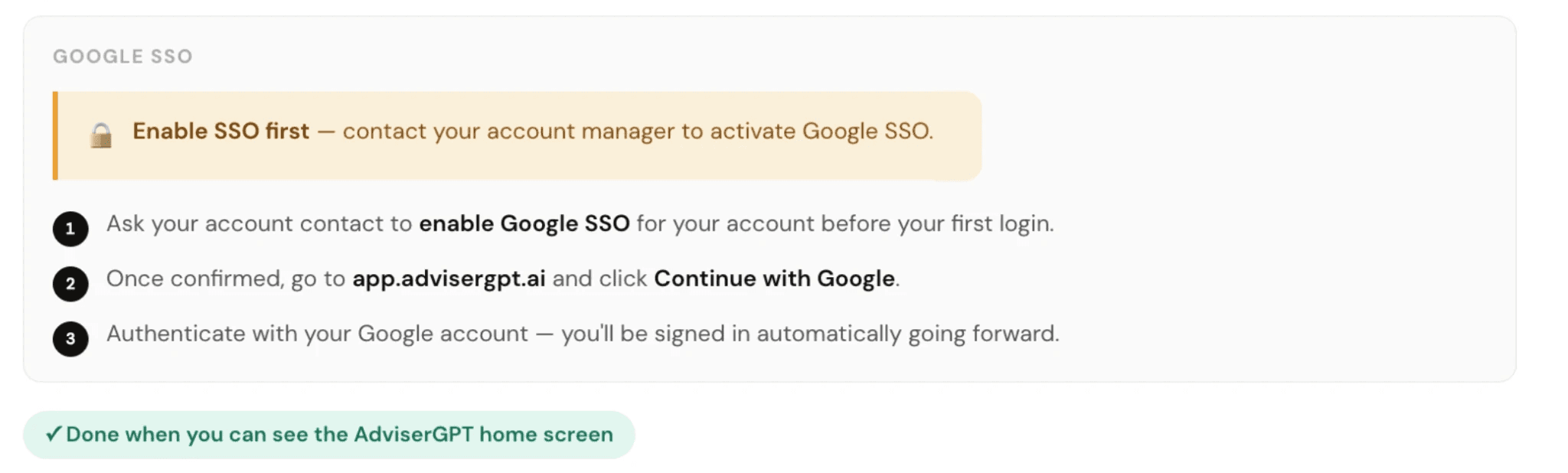
You'll receive login credentials by email from the AdviserGPT team. Follow the link to create your password, then choose your preferred sign-in method, either Single Sign On or Password. When your firm selects Single Sign On via Microsoft or Google, your users can no longer enter a password. Your Admin manages billing, team members, and the preferred SSO.
Sign in method
Email & Password
Microsoft SSO
Google SSO
Install the Plug-ins
Bring AdviserGPT into the tools you already use—Microsoft Word, Excel, Edge, and Google Chrome. Answer RFPs without ever switching apps.
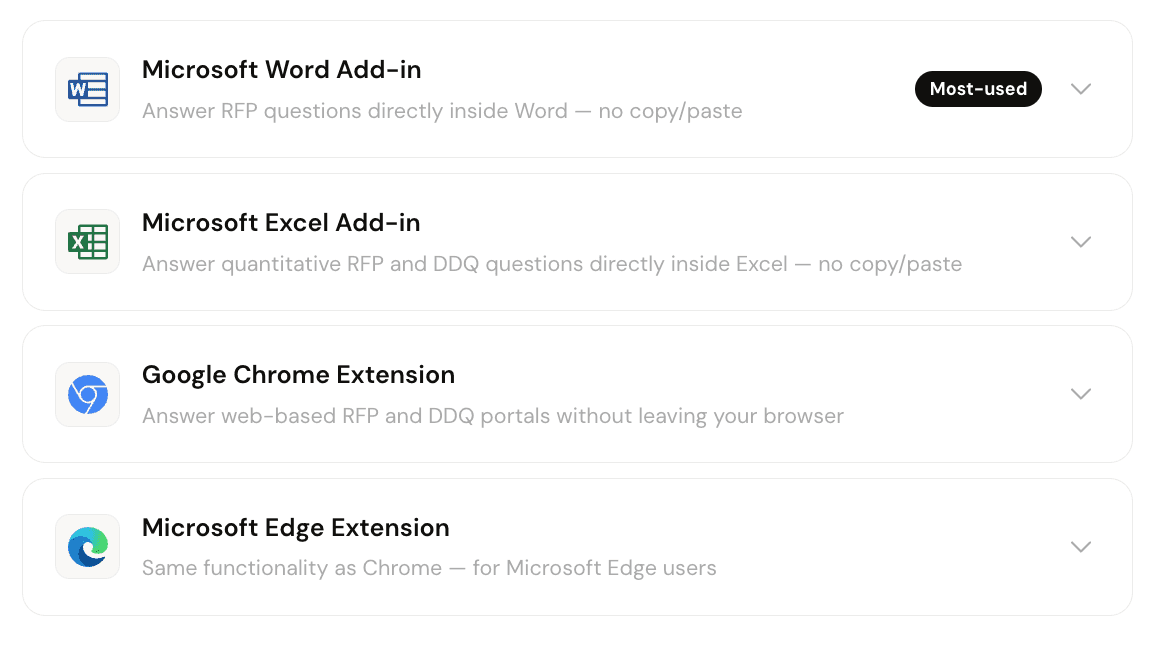
Microsoft Word Add-in
Answer RFP questions directly inside Word—no copy/paste.
IT approval may be required. If you can’t find the add-in or get a permission error, ask your IT team to approve “AdviserGPT” in the Microsoft Word Extensions Admin Center.
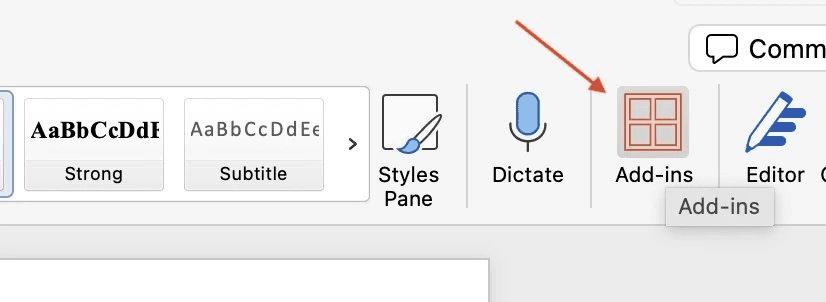
Open Add-ins from the Home ribbon
In Word, click Add-ins in the ribbon. Search “AdviserGPT” and click Add or Install. Can’t find it? Install directly from the Microsoft AppSource Marketplace.
Sign in from Inside Word
The AdviserGPT button will appear in the upper-right corner of the Home ribbon. Click it and sign in with your account credentials. Pin the plug-in so that it stays in your ribbon.
You’ll know it worked when the AdviserGPT button appears in the Word ribbon and you can sign in from inside Word.
Microsoft Excel Add-in
Answer quantitative RFP and DDQ questions directly inside Excel—no copy/paste.
IT approval may be required. If you can’t find the add in or get a permission error, ask your IT team to approve “AdviserGPT” in the Microsoft Excel Extensions Admin Center.
— Image to be added —
Open Add-ins from the Home ribbon
In Excel, click Add-ins in the ribbon. Search “AdviserGPT” and click Add or Install. Can’t find it? Install directly from the Microsoft AppSource Marketplace.
Sign in from Inside Excel
The AdviserGPT button will appear in the upper-right corner of the Home ribbon. Click it and sign in with your account credentials. Pin the plug-in so that it stays in your ribbon.
You’ll know it worked when the AdviserGPT button appears in the Excel ribbon and you can sign in from inside Excel.
Google Chrome Extension
Answer RFPs and DDQs in the web-based portals without leaving your Google browser.

Find it in the Chrome Web Store
Search “AdviserGPT” in the Chrome Web Store, or use the direct link, Chrome Web Store AdviserGPT. Click Add to Chrome, then confirm with Add Extension.
Pin it for quick access
Click the puzzle icon in Chrome’s toolbar and pin AdviserGPT so it’s always one click away in your browser ribbon.
Note: Alternatively,
Three-dot menu → Extensions → Visit Chrome Web store
Follow the instructions above.
You’ll know it worked when the AdviserGPT icon appears in your Chrome toolbar. Navigate to any web RFP portal and click it to open the sidebar.
Microsoft Edge Extension
Same functionality as Chrome—for Microsoft Edge users.


Go to Microsoft Edge Add-ons
Search “AdviserGPT,” or use the direct link from your account contact. Click Get, then confirm with Add Extension.
Confirm and Pin it for quick access
Click View Extension to confirm it’s active, then pin it from the Extensions menu for quick access.
Note: Alternatively,
Three-dot menu → Extensions → Get extensions for Microsoft Edge
Follow the instructions above.
You’ll know it worked when the AdviserGPT icon appears in your Edge toolbar. Sign in and navigate to your web RFP portal.